Connect Node-RED to MongoDB
Let's connect our Node-RED environment to the MongoDB database.
Ensure that you have already set up the Node-RED and MongoDB services.
To connect our back-end to the database, we will install the MongoDB node and configure its server.
-
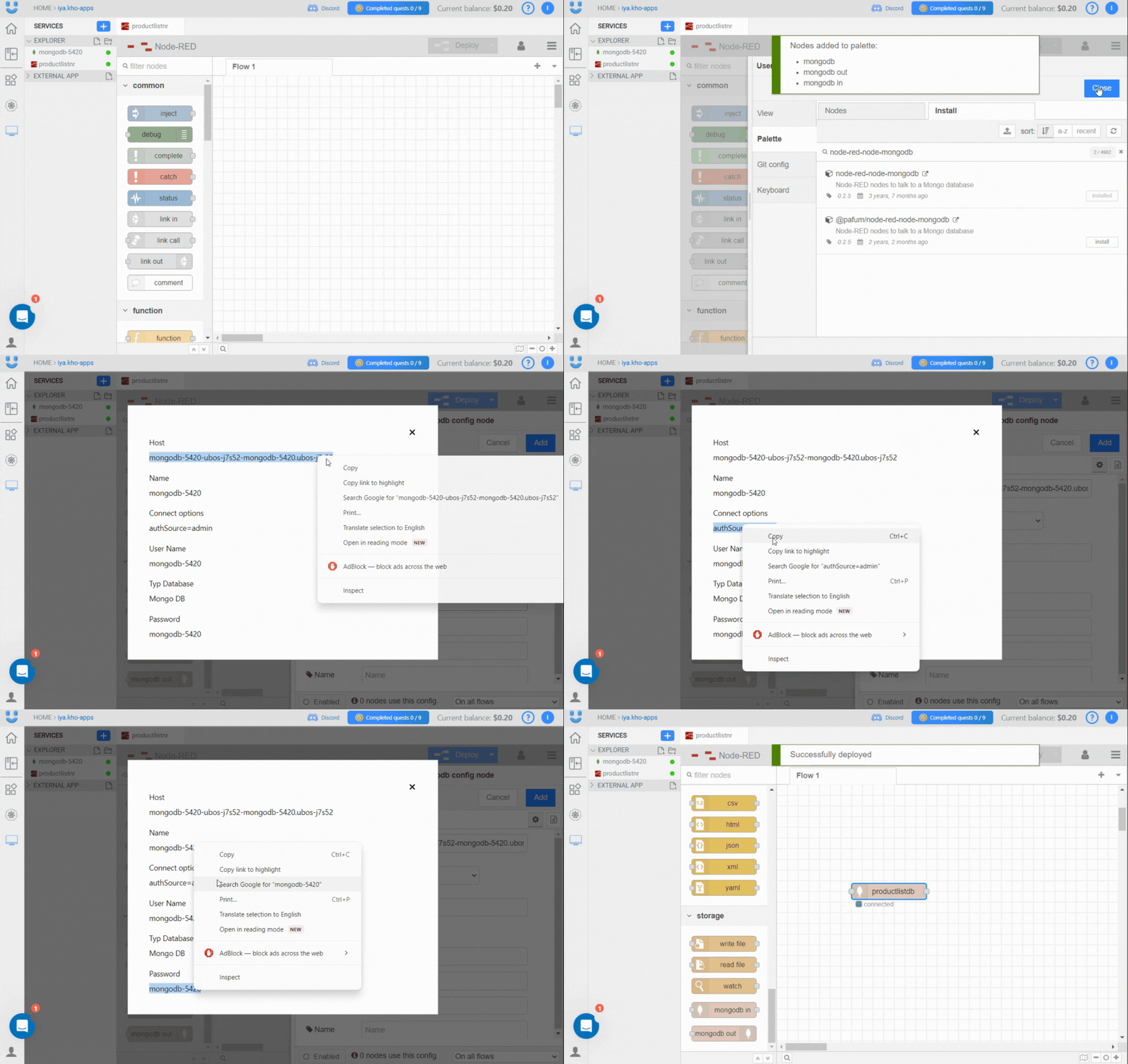
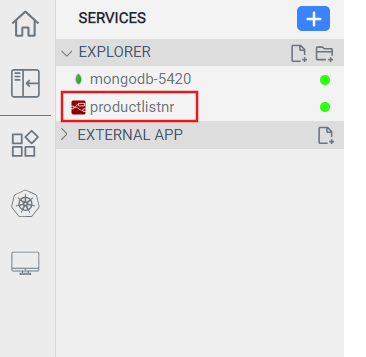
Open your Node-RED environment by clicking on its name.
-
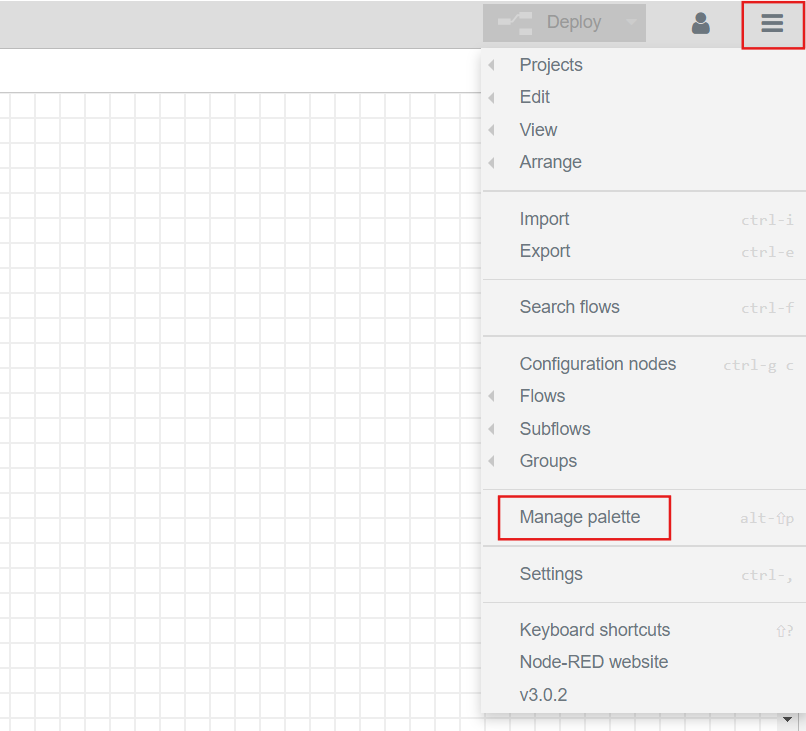
Click on the hamburger menu at the top right corner of the workspace and choose
Manage palette.
-
Open the Install tab, search for node-red-node-mongodb, and
install the node. Once the installation is complete, a message confirming the
node's successful addition will appear. Close the toolbar.

-
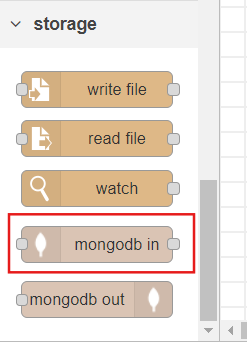
Check the list of available nodes on the left side of the workspace. You should
be able to find mongodb in and mongodb out nodes. Select the
mongodb in node, and drag and drop it on the dashboard.
-
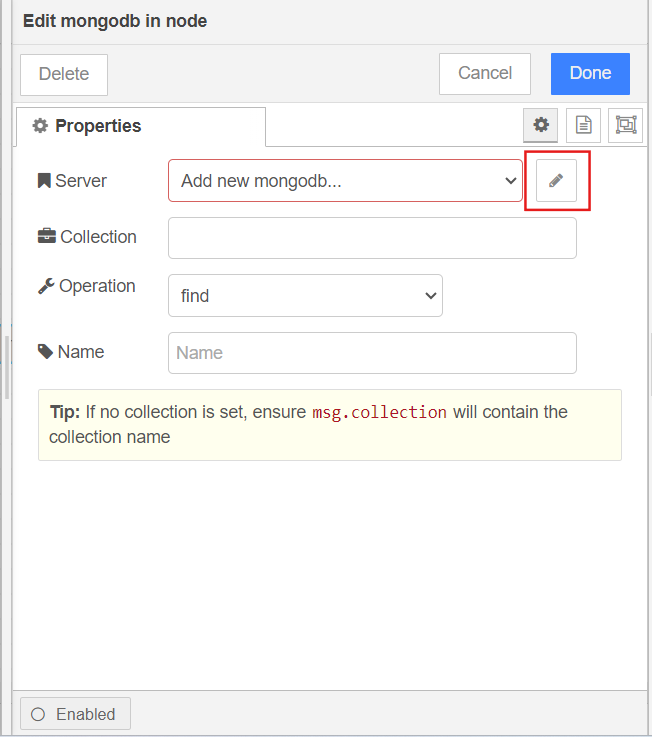
Double-click the mongodb in node to open its settings. To add a server,
click the Edit button next to the Server line. The server
properties will appear.
-
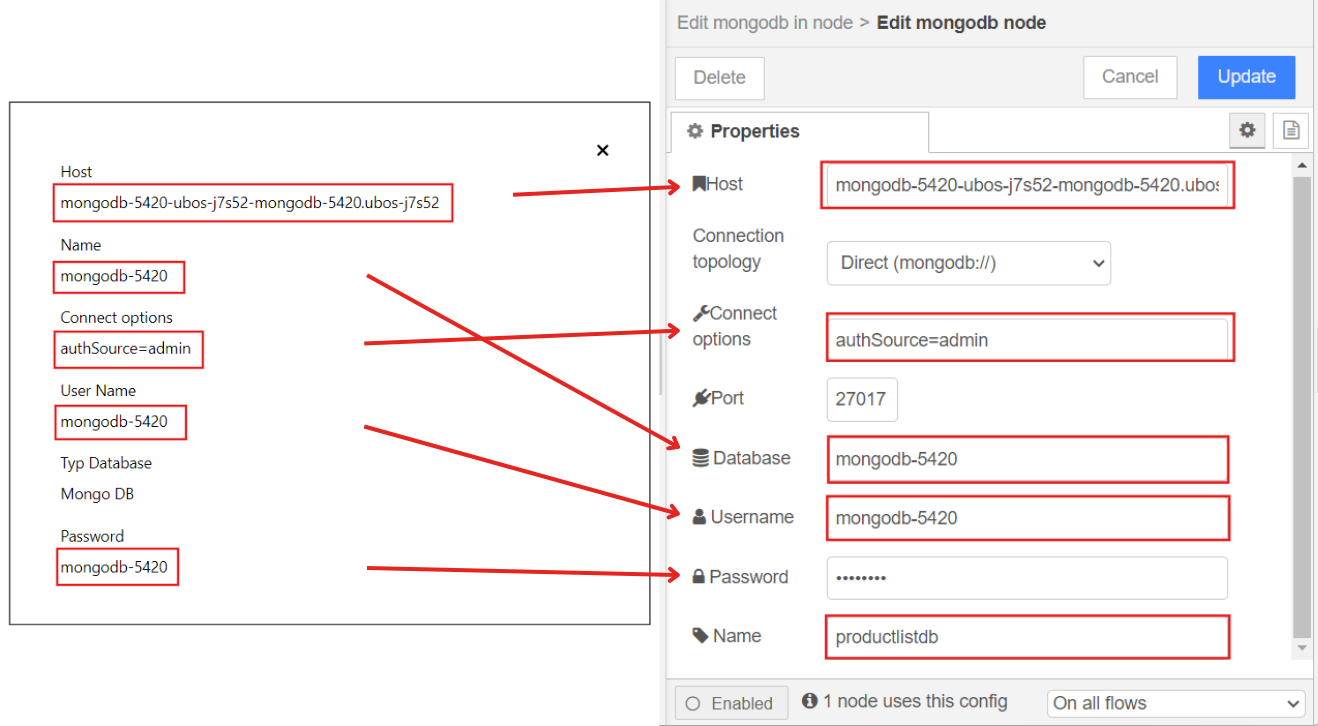
Open the configurations of your MongoDB service by clicking on its name.
Copy data from MongoDB service configurations and paste it to the service
properties of the mongodb in node in your Node-RED service, as
shown in the following figure. Then, give your database a name, click
Add, and Done.
-
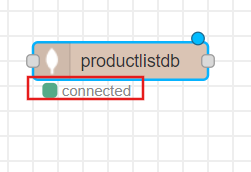
Deploy the service to save changes. You will see a green indicator below the
mongoDB in node, signifying a successful database connection.
You are now prepared to implement the CRUD operations for your API.
Let's connect our example store API to the database.